Star Wars: Return of the Jedi - Death Star Battle
862K plays 1983 #Action#Shooter
Return of the Jedi: Death Star Battle is a shoot 'em up video game published by Parker Brothers in 1983 for the Atari 2600, Atari 5200, and Atari 8-bit family. In 1985, it was published by Sinclair Research as part of a software pack bundled with ZX Spectrum+. It was one of the earliest Star Wars-related video games, following Star Wars: The Empire Strikes Back in 1982 and alongside Atari's 1983 Star Wars arcade game. It was the first video game based on Return of the Jedi.
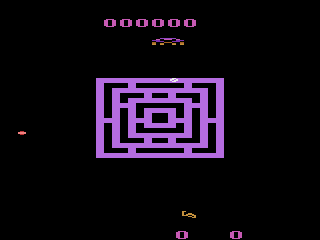
Death Star Battle is loosely based on the events of the film Star Wars Episode VI: Return of the Jedi. The player's task is to destroy the Death Star before its construction is finished. He starts the task outside the shield perimeter of the Death Star. There he will have to combat different imperial vessels and avoid the death ray while waiting for an opportunity to slip through one of the random openings in the energy shield. After reaching the Death Star he must reduce its structure up to the point where he can hit the core. In the following destruction of the station he must avoid collision with Death Star debris. After completion the game will restart with increased difficulty (faster enemies, faster Death Star build up, etc). Overall difficulty can also be adjusted before starting the game.
The cover art depicts the Millennium Falcon in flight away from the partially constructed Death Star, pursued by four TIE interceptors. It was produced by science fiction artist John Berkey, who designed some of the earliest poster art for the original 1977 film, Star Wars.
Text: Wikipedia via RetroGames.cz, licensed under CC BY-SA 3.0
Keyboard controls
| Atari 2600 | Player 1 | Player 2 |
|---|---|---|
| D-pad | ↑↓←→ | IKJL |
| Fire | Z | N |
| Game Select | Shift | |
| Game Reset | Enter |
Hotkeys
- 1 Quick save state
- 2 Quick load state
- 3 Change save slot
Most games start with Game Reset. Paddle games (Breakout, Kaboom!…) need a gamepad stick.
Gamepads are detected when you press a button. Remap any key from the emulator’s Controls menu (gear icon).
Comments